

Have you ever opened an Excel worksheet and found too many rows or columns on the screen?
Maybe you have some extra columns that you don’t need right now. Or you want to hide old data without deleting it.
Excel makes this easy.
You can hide rows, columns, or entire worksheets and bring them back whenever you need them.
The data remains in the workbook. It is simply hidden from view.
In this guide, we’ll learn how to hide and unhide rows, columns, and sheets in Excel using simple methods.
What Does Hide and Unhide Mean in Excel?
Hiding in Excel means making rows, columns, or worksheets invisible for a while.
For example, imagine you have a sales report with 20 columns, but you only need to work with five of them.
Instead of deleting the other columns, you can hide them.
Later, you can unhide them and see the data again.
Hiding is useful because:
- Your data is not deleted
- Formulas remain in the workbook
- Worksheet looks cleaner
- You can focus on the information you need

Why Hide Rows and Columns in Excel?
Hiding data can make a large worksheet easier to read.
You may want to hide:
- Extra details in a report
- Old monthly data
- Helper columns used in formulas
- Information you do not need right now
- Notes or calculations that make the worksheet look crowded
For example, a sales report may contain columns for:
Product, Price, Quantity, Discount, Tax, Total, and Profit
If you only want to check the total sales, you can temporarily hide the columns you don’t need.
How to Hide Rows in Excel?
Let’s say you want to hide a few rows from your worksheet.
Step 1: Select the rows
Click the row numbers on the left side of Excel.
For example, if you want to hide Rows 5, 6, and 7, select those rows.
Step 2: Right-click the selected rows
Right-click anywhere on the selected row numbers.

Step 3: Click Hide
Click Hide from the menu.
The selected rows will disappear.
Don’t worry. Excel has not deleted them.
How to Unhide Rows in Excel?
When rows are hidden, you may notice that some row numbers are missing.
For example, you may see:
4, 8, 9, 10
This means Rows 5 to 7 may be hidden.
You may also see a small double line between the row numbers.
Step 1: Select the rows around the hidden rows
Select the row above and the row below the hidden rows.
For example, if Rows 5 to 7 are hidden, select Rows 4 and 8.
Step 2: Right-click
Right-click the selected row numbers.

Step 3: Click Unhide
Click Unhide.
The hidden rows will appear again.
How to Hide Columns in Excel?
You can hide columns in almost the same way.
For example, you may want to hide columns containing discounts, tax, or extra calculations.
Step 1: Select the columns
Click the column letters at the top of the worksheet.
For example, select Columns D,E and F.
Step 2: Right-click the selected columns
Right-click the selected column letters.

Step 3: Click Hide
Click Hide.
All the selected columns will be hidden.
How to Unhide Columns in Excel?
When columns are hidden, you may notice that some column letters are missing.
For example, you may see:
A, B,C, G
This means Columns D,E and F may be hidden.
Step 1: Select the columns around the hidden columns
Select the columns on both sides of the hidden area.
For example, if Columns D,E and F are hidden, select Columns C and G.
Step 2: Right-click
Right-click the selected column letters.

Step 3: Click Unhide
Click Unhide.
The hidden columns will appear again.
How to Hide and Unhide Rows or Columns Using the Ribbon?
You can also Hide or Unhide rows and columns from the Excel Ribbon.
1. Select the rows or columns.
2. Go to the Home tab.
3. Click Format in the Cells group.
4. Choose Hide & Unhide.
5. Select the option you need.
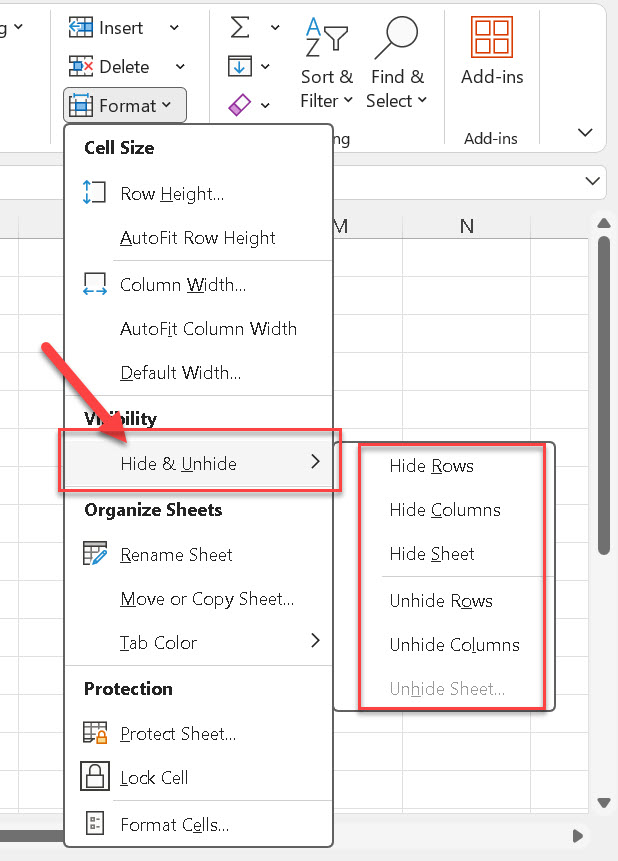
You will see options such as:
- Hide Rows
- Unhide Rows
- Hide Columns
- Unhide Columns
This method is useful if you prefer using the Excel ribbon instead of right-clicking.
Keyboard Shortcuts to Hide or Unhide Rows and Columns:
You can also hide and unhide rows and columns using keyboard shortcuts.
Hide Rows:
Select the rows you want to hide and press:
Ctrl + 9
Excel will hide the selected rows.
Hide Columns:
Select the columns you want to hide and press:
Ctrl + 0
Excel will hide the selected columns.

Unhide Rows:
Select the rows around the hidden rows and press:
Ctrl + Shift + 9
Excel will unhide the selected rows.
Unhide Columns:
Select the columns around the hidden columns and press:
Ctrl + Shift + 0
Excel will unhide the selected columns.
These shortcuts are useful when you frequently hide or unhide rows and columns.
Tip: If Ctrl + 0 does not work on your computer, it may be disabled or affected by Windows or keyboard settings.
How to Hide a Worksheet in Excel?
You can also hide an entire worksheet.
For example, you may have a sheet called Old Data or Calculations that you don’t need to see every day.
Step 1: Right-click the sheet tab
At the bottom of Excel, right-click the worksheet tab you want to hide.
Step 2: Click Hide
Click Hide.

The worksheet tab will disappear.
The worksheet and its data are still inside the workbook. It is only hidden from view.
How to Unhide a Worksheet in Excel?
To bring back a hidden worksheet:
1. Right-click any visible worksheet tab.
2. Click Unhide.
3. Excel will show a list of hidden worksheets.
4. Select the worksheet you want to show.
5. Click OK.

If you have multiple worksheets hidden, you can select multiple worksheets in the Unhide dialog.
- Hold Ctrl and click the worksheets you want to unhide.
- Or hold Shift and use the Up/Down Arrow keys to select multiple worksheets.
Then click OK.
The selected worksheets will appear again in the sheet tabs.
How to Hide or Unhide Worksheets from the Ribbon?
You can also hide or unhide worksheets using the Excel Ribbon instead of right-clicking the worksheet tab.
To Hide a Worksheet:
- Select the worksheets you want to hide.
- Go to the Home tab.
- Click Format in the Cells group.
- Select Hide & Unhide.
- Click Hide Sheet.
The worksheet tabs will disappear.

The worksheet and its data are still in the workbook. It is only hidden from view.
To Unhide a Worksheet:
- Go to the Home tab.
- Click Format in the Cells group.
- Select Hide & Unhide.
- Click Unhide Sheet.
- Select the worksheet or worksheets you want to show.
- Click OK.
If you have multiple worksheets hidden, you can select multiple worksheets in the Unhide dialog.
- Hold Ctrl and click the worksheets you want to unhide.
- Or hold Shift and use the Up/Down Arrow keys to select multiple worksheets.
Then click OK.
The selected worksheets will appear again in the sheet tabs.
Tip: The Ribbon method is useful if you prefer using the Excel Ribbon instead of right-clicking a worksheet tab.
How to Hide Multiple Rows or Columns?
You can hide several rows or columns at the same time.
To hide nearby rows or columns:
- Click and drag over the row numbers or column letters you want to select.
- Then right-click and choose Hide.
For example, you can select Rows 5 to 10 and hide them together.
To hide non-adjacent rows or columns:
You can also select rows or columns that are not next to each other.
- Hold the Ctrl key and click the row numbers or column letters you want to select.
- Then right-click and choose Hide.
For example, you can select Row 4, Row 7, and Row 10 and hide them together.

How to Unhide All Rows or Columns in Excel:
If many rows are hidden and you want to show all of them, you can select the entire worksheet.
Step 1: Select the entire worksheet
Click the Select All button in the top-left corner of the worksheet.
It is the small triangle where the row numbers and column letters meet.
Step 2: Open Hide & Unhide
- Go to Home → Format.
- Select Hide & Unhide.
- Click Unhide Columns or Unhide Rows

All hidden rows or columns will be displayed.
How to Unhide the First Row or First Column?
Sometimes Row 1 or Column A may be hidden.
This can be confusing because there is no row above Row 1 or column before Column A to select.
If only a few rows or columns are hidden, you can select the entire worksheet and use the Unhide Rows or Unhide Columns option.
However, if you have many hidden rows or columns and want to unhide only Row 1 or Column A, the Name Box method is useful.
To Unhide Row 1 or Column A Using the Name Box:
- Click the Name Box near the Formula Bar.
- Type `A1`.
- Press Enter.
- Go to Home → Format → Hide & Unhide.
- Click Unhide Rows or Unhide Columns.

This lets you select A1 even when Row 1 or Column A is hidden.
Tip: If you have many hidden rows or columns and want to unhide all of them, click the Select All button at the top-left corner of the worksheet and then go to Home → Format → Hide & Unhide → Unhide Rows or Unhide Columns.
Hide vs Delete in Excel:
It is important to understand the difference between hiding and deleting.
| Hide | Delete |
| Temporarily removes rows, columns, or sheets from view | Permanently removes rows, columns, or sheets |
| Data remains in the workbook | Data may be removed |
| You can use Unhide to show it again | You may need Undo or a backup to recover it |
| Useful when you may need the data later | Useful when you no longer need the data |
If you are not sure whether you will need the data later, hiding it is usually better than deleting it.
Related Articles:
How to Delete Cell Content in Excel Using the DELETE Key
How to add and delete Columns in Excel?
How to add and delete Rows in an Excel worksheet?
How to Add and Delete Worksheets in Excel
Hide vs Grouping in Excel:
Hiding and grouping may look similar, but they work differently.
| Hide | Grouping |
| Simply hides rows or columns | Creates an outline structure |
| Does not show expand/collapse buttons | Shows + and − buttons |
| Good for temporarily hiding data | Good for reports with details and totals |
| Uses Hide and Unhide | Uses Group and Ungroup |
If you regularly want to expand and collapse sections of a report, Grouping can be more useful.
Learn more in our guide to Grouping in Excel.
Important: Hiding Is Not Security:
Hiding rows, columns, or worksheets is useful for keeping a workbook clean.
But hiding is not a security feature.
Anyone who has access to the workbook may be able to unhide the data.
So, don’t use Hide as a way to protect private or confidential information.
If you need to protect important data, use the appropriate Excel protection and access controls.
Common Problems With Hide and Unhide:
I cannot see the hidden rows or columns:
Look for missing row numbers or column letters.
For example, if you see row 4 and then row 8, rows 5, 6, and 7 may be hidden.
A double line between rows or columns is also a sign of hidden data.
The Unhide option is not showing:
Make sure you are right-clicking the row numbers or column letters.
If you right-click inside a normal cell, you may not see the Unhide option.
My rows are hidden, but I cannot bring them back:
Select the rows above and below the hidden rows.
Then right-click and choose Unhide.
You can also use:
Home → Format → Hide & Unhide → Unhide Rows
Will hidden rows and columns print in Excel?
Normally, hidden rows and columns are not included when you print the worksheet.
If you want them to appear in the printout, unhide them before printing.
Frequently Asked Questions:
1. What is Hide and Unhide in Excel?
Hide and Unhide is an Excel feature that lets you temporarily hide rows, columns, or worksheets and show them again later.
2. Does hiding rows delete the data?
No. Hiding rows does not delete the data. The rows are simply hidden from view.
3. How do I hide a column in Excel?
Select the column, right-click the column letter, and click Hide.
4. How do I unhide a column in Excel?
Select the columns on both sides of the hidden column, right-click, and choose Unhide.
5. What is the shortcut to hide rows in Excel?
Select the rows and press Ctrl + 9.
6. What is the shortcut to hide columns in Excel?
Select the columns and press Ctrl + 0.
7. Can I hide an entire worksheet in Excel?
Yes. Right-click the worksheet tab and select Hide.
8. How do I unhide a worksheet?
Right-click any visible worksheet tab, select Unhide, choose the worksheet, and click OK.
9. Can people see hidden data in Excel?
Yes. People who have access to the workbook may be able to unhide rows, columns, or worksheets.
Hiding data is not the same as protecting it.
10. What is the difference between hiding and grouping in Excel?
Hiding simply removes rows or columns from view. Grouping creates an outline that lets you expand and collapse sections using + and − buttons.
Final Thoughts:
Hide and Unhide in Excel is a simple feature, but it is very useful when you work with large worksheets.
You can hide extra rows, columns, or entire worksheets without deleting the data.
This is especially useful when you are working with large worksheets and want to focus only on the information you need.
For quick reference, remember:
- Ctrl + 9 → Hide Rows
- Ctrl + 0 → Hide Columns
- Ctrl + Shift + 9 → Unhide Rows
- Ctrl + Shift + 0 → Unhide Columns
And one important thing to remember:
Hide is not Delete.
Your data stays in the workbook until you choose to remove it.
Discover more from Excellopedia
Subscribe to get the latest posts sent to your email.