

Have you ever looked at a large number in Excel and found it difficult to read?
For example, this number:
1250000
is not very easy to understand at first glance.
But Excel’s Comma Style makes these numbers easier to read by adding thousands separators.
In this article, you will learn how to apply Comma Style, control decimal places, and use other formatting methods.
What Is Comma Style in Excel?
Comma Style is a number formatting option in Excel.
It adds a comma (thousand’s separators) to numbers and can also display decimal places.
For example:
| Before Comma Style | After Comma Style |
| 1500 | 1,500.00 |
| 25000 | 25,000.00 |
| 1250000 | 12,50,000.00 |
It makes your worksheet look cleaner and makes large numbers easier to read.
Comma Style does not change the actual number in the cell. It only changes the way the number is displayed.
How to Apply Comma Style in Excel?
The easiest way to apply Comma Style is from the Excel Ribbon.
Step 1: Select the cells
First, select the cell or range of cells that contains your numbers.
For example, if your sales numbers are in column B, select the cells in that column.
Step 2: Go to the Home tab
On the Ribbon, click the Home tab.
Step 3: Find the Number group
On the Home tab, look for the Number group.
This group contains options for formatting numbers, currency, percentages, decimal places, and more.

Step 4: Click Comma Style
Click the Comma Style button.
Excel will apply the formatting to your selected numbers.

For example:
450000 becomes 4,50,000.00
That is it.
How to Apply Comma Style to a Full Column?
If you have many numbers in one column, you do not need to format each cell one by one.
Just follow these steps:
1. Click the column letter at the top of the column.
2. Go to the Home tab.
3. Click Comma Style in the Number group.

Excel will apply Comma Style to the entire column.
If you have several columns containing numbers, you can select all the columns and click Comma Style to format them at once.
This is useful when you have a long list of prices, sales amounts, or quantities.
Comma Style Showing Decimal Places, How to Remove them?
After applying Comma Style, Excel may show decimal places.
25,000.00
Do not worry. This is normal.
Excel may add two decimal places when you use Comma Style.
If you do not want to see .00, you can remove the decimal places.
How to remove decimal places:
- Select the formatted cells.
- Go to the Home tab.
- In the Number group, click Decrease Decimal.
- Keep clicking it until you have the number of decimal places you want.

For example:
25,000.00 becomes 25,000

You can also use Increase Decimal if you want to display more decimal places.
For more information, see our article:
Increase and Decrease Decimals in Excel
How to Apply Comma Formatting Without the Ribbon:
The Ribbon is the quickest method, but you have other options too.
Keyboard Shortcut for Number Formatting:
Excel has a shortcut for applying the Number format:
Ctrl + Shift + 1
This applies Excel’s Number format, which displays a thousand’s separator and two decimal places.
It is useful when you want to quickly apply number formatting from the keyboard.
Using Format Cells:
- Select the cells.
- Press Ctrl + 1, or right-click the selected cells and choose Format Cells.
- By default, the Number tab is selected.
- Under the Number tab, select Number from the Category list.
- Choose the number of decimal places you want.
- Select Use 1000 Separator (,).
- Click OK.

This method gives you more control over the formatting.
Using a Custom Number Format:
You can also create your own number format.
For example:
#,##0
displays numbers with commas and no decimal places.
To display two decimal places, use:
#,##0.00
Steps:
- Select the cells.
- Press Ctrl + 1.
- Under the Number tab, select Custom from the Category list.
- Enter your format.
- Click OK.

How to Remove Comma Style in Excel?
If you want to remove Comma Style later, you can change the format back to General.
Using the Ribbon:
- Select the cells.
- Go to the Home tab.
- Click the Number Format drop-down list from Number group.
- Select General.

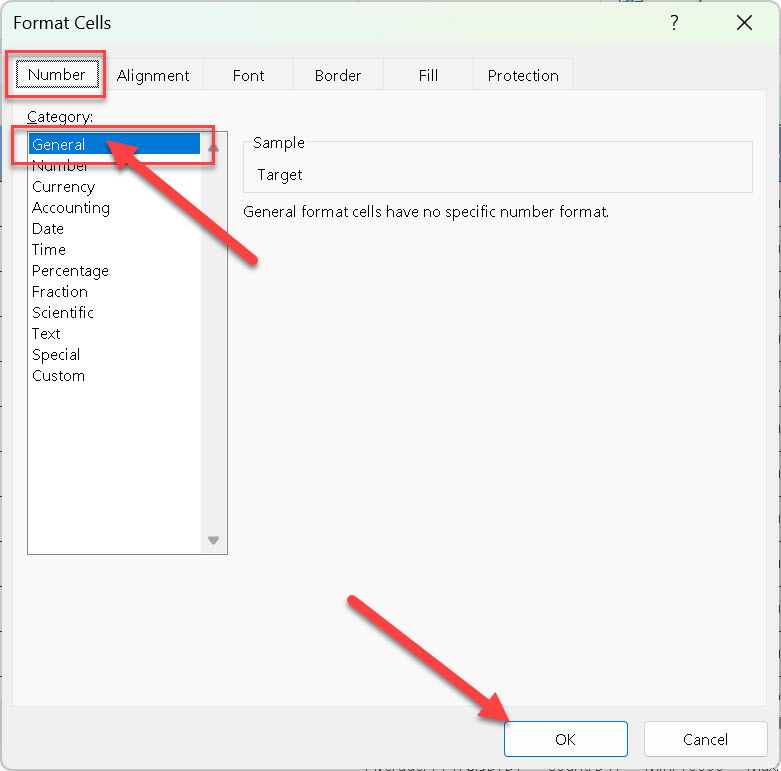
Using Format Cells:
- Select the cells.
- Right-click and select Format Cells.

- Under the Number tab, select General.
- Click OK.
The comma formatting will be removed.
For example:
1,250,000 becomes 1250000
The actual value in the cell will remain the same.
Why Use Comma Style in Excel?
When numbers are large, it is easy to read them incorrectly.
For example, look at this number:
250000
You may need a few seconds to count the zeros.
But this is much easier:
2,50,000
The thousands separators (commas) help your eyes quickly understand the value.
Comma Style is especially useful for:
- Sales reports
- Monthly expenses
- Budgets
- Product quantities
- Student marks
- Employee salary sheets
- Financial reports
- Total amounts
Even a simple worksheet can look more professional when the numbers are properly formatted.
Comma Style vs Currency Style in Excel:
Comma Style, Currency, and Accounting formats are different.
| Format | Main purpose | Example |
| Comma Style | Makes numbers easier to read | 25,000.00 |
| Currency | Displays a currency symbol with a number | ₹ 25,000.00 |
| Accounting | Formats financial values with currency symbols and alignment | ₹ 25,000.00 |
If you simply want to make large numbers easier to read, Comma Style is useful.
If the values represent money, Currency or Accounting format may be more appropriate.
When You Should Not Use Comma Style:
Comma Style is helpful for real numbers, totals, prices, and quantities.
But do not use it for things like:
- Phone numbers
- Invoice numbers
- Employee ID numbers
- PIN codes
- Postal codes
- Product codes
For example, a phone number should not look like this:
9,876,543,210
These types of values are better stored as text in Excel.
Common Problems With Comma Style:
The number is showing as ####:
If Excel displays:
####

This usually means the column is too narrow.
Simply make the column wider by dragging the right edge of the column heading.
You can also double-click the right edge of the column heading to automatically fit the column width.
Comma Style is not working:
Sometimes Excel may treat a value as text instead of a number.
If a value is stored as text, applying number formatting may not work as expected.
Convert the value to a number first, and then apply Comma Style.
The Comma and Decimal Separators Look Different:
The thousands and decimal separators used by Excel can depend on your regional settings.
For example, Excel may use different symbols for thousands and decimal separators depending on your settings.
So, the number may look different from the examples in this article, but the purpose of the formatting remains the same.
Frequently Asked Questions:
1. What is Comma Style in Excel?
Comma Style is a formatting option that adds thousands separators to numbers and can display decimal places.
2. Does Comma Style change the actual value?
No. It only changes how the number looks in the cell. The original value stays the same for calculations.
3. Where is Comma Style in Excel?
You can find it on the Excel Ribbon:
Home → Number → Comma Style
4. How do I add commas to numbers in Excel?
Select the cells, go to the Home tab, and click Comma Style in the Number group.
5. Why is Excel showing .00 after using Comma Style?
Excel may add decimal places automatically after applying Comma Style. Use the Decrease Decimal button if you do not want to show them.
6. Can I use Comma Style for money?
Yes, but Comma Style does not add a currency symbol. For money, Currency Style or Accounting Format may be a better option.
7. Can I use Comma Style with formulas?
Yes. You can apply Comma Style to cells containing formulas without changing the formulas.
8. Can I apply comma formatting without using Comma Style?
Yes. You can use Format Cells, a keyboard shortcut, or a Custom Number Format.
Final Thoughts:
Comma Style is a simple way to make large numbers easier to read in Excel.
The quickest method is:
Select the cells → Home → Number → Comma Style
If you need more control, use Format Cells or a Custom Number Format.
For decimal places, use the Increase Decimal and Decrease Decimal buttons in the Number group.
With just a few clicks, you can make large numbers much easier to read and understand.
Discover more from Excellopedia
Subscribe to get the latest posts sent to your email.