
Have you ever needed to add a new row or column in Excel without using the mouse?
You can use the Ctrl + + keyboard shortcut to insert rows, columns, or cells in Excel.
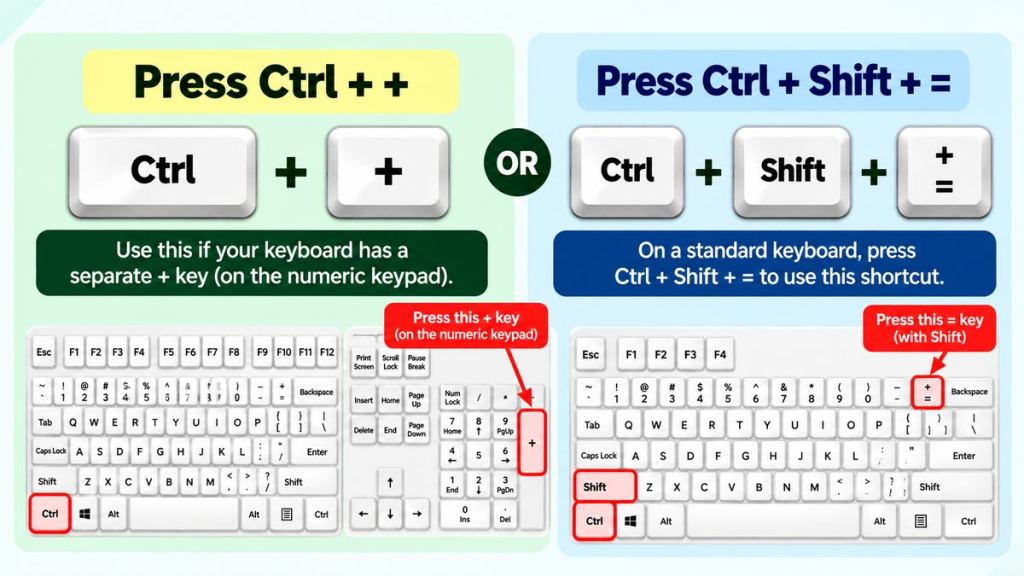
On most standard keyboards, the plus sign (+) shares the equals (=) key. So, you can press Ctrl + Shift + = to use this shortcut.
Let’s see how it works.
Keyboard Shortcut to Insert Rows and Columns in Excel:
The keyboard shortcut to insert rows, columns, or cells in Excel for Windows is:
Ctrl + +
On a standard keyboard, press Ctrl + Shift + = to use this shortcut.
If your keyboard has a separate plus (+) key on the numeric keypad, you can usually press Ctrl + + instead.
How to Insert a Row Using a keyboard shortcut?
Suppose you have an employee list and want to add a new row above row 3.
Follow these steps:
- Select any cell in row 3.
- Press Shift + Space to select the entire row.
- Press Ctrl + +. On a standard keyboard, press Ctrl + Shift + =.
Excel inserts a blank row above row 3.
You can now enter the new employee’s details in the blank row.
Tip: You can select the entire row first to insert a row directly. If you select only a cell, Excel opens the Insert dialog, where you can choose what to insert.
How to Insert a Column Using a Keyboard Shortcut?
Suppose your worksheet contains Employee, Department, and Sales columns. You want to add a Region column between Department and Sales.
Follow these steps:
- Select any cell in the Sales column.
- Press Ctrl + Space to select the entire column.
- Press Ctrl + +. On a standard keyboard, press Ctrl + Shift + =.
Excel inserts a blank column to the left of the selected column.
You can now enter the Region heading and add the relevant data.
How to Insert Multiple Rows or Columns at Once?
You don’t need to insert rows or columns one at a time. You can insert several at once using the same shortcut.
Insert multiple rows:
1. Select the same number of entire rows as the number you want to insert.
2. Press Ctrl + +.
Excel inserts the same number of blank rows above your selection.
For example, if you select three entire rows and use the shortcut, Excel inserts three new rows.
Insert multiple columns:
1. Select the same number of entire columns as the number you want to insert.
2. Press Ctrl + +.
Excel inserts the same number of blank columns to the left of your selection.
For example, select two entire columns to insert two new columns.
What Happens When You Select Individual Cells?
If you select individual cells instead of entire rows or columns, pressing Ctrl + + opens the Insert dialog.
Excel asks how you want to insert the cells.
You can choose one of these options:
- Shift cells right: Moves existing cells to the right.
- Shift cells down: Moves existing cells down.
- Entire row: Inserts a complete worksheet row.
- Entire column: Inserts a complete worksheet column.

Choose the option you need and click OK.
Important Things to Remember:
- Ctrl + + is used to insert cells, rows, or columns in Excel for Windows.
- On most standard keyboards, press Ctrl + Shift + = to use the shortcut.
- Select an entire row or column before using the shortcut to insert it directly.
- To insert multiple rows or columns, select the same number of existing rows or columns first.
- Excel inserts rows above the selected rows and columns to the left of the selected columns.
Frequently Asked Questions:
1. What is the shortcut to insert a row in Excel?
Press Ctrl + + after selecting the row where you want to insert a new row. On a standard keyboard, press Ctrl + Shift + =. You can select an entire row using Shift + Space.
2. What is the shortcut to insert a column in Excel?
Press Ctrl + + after selecting the column where you want to insert a new column. On a standard keyboard, press Ctrl + Shift + =. You can select an entire column using Ctrl + Space.
3. Can I insert multiple rows using a keyboard shortcut?
Yes. Select the same number of entire rows as the number you want to insert, then press Ctrl + +.
4. What is the difference between Ctrl + + and Ctrl + Shift + =?
Both notations refer to the insert shortcut in Excel for Windows. On most standard keyboards, press Ctrl + Shift + = to use the shortcut.
If your keyboard has a separate plus (+) key on the numeric keypad, you may be able to use Ctrl + + without pressing Shift.
Final Thoughts:
The Ctrl + + shortcut helps you insert rows, columns, or cells without opening the ribbon.
Select an entire row or column before using the shortcut to insert it directly. If you select individual cells, Excel opens the Insert dialog so you can choose how to add the new cells.
For more useful shortcuts, visit our Excel Keyboard Shortcuts page.
Related Guides: Insert Rows, Columns, and Worksheets in Excel
Want to learn more about inserting rows, columns, or worksheets in Excel? Check out these guides:
How to add and delete Rows in an Excel worksheet?
How to add and delete Columns in Excel?
How to Use the Insert Option in Excel Home Tab
How to Add and Delete Worksheets in Excel
Discover more from Excellopedia
Subscribe to get the latest posts sent to your email.