

Have you ever received a long list of information in text format and wondered, “How will I put all of this into Excel?”
Maybe it is customer details, product information, email addresses, or other data written as a long paragraph or messy list.
For example:
Riya Sharma, Hyderabad, 9876543210, Sales
Aman Kumar, Mumbai, 9988776655, Marketing
Sara Khan, Delhi, 9123456780, HR
Entering this information into Excel manually can take a lot of time. You need to create columns and place each detail in the correct cell.
But AI can make this easier.
Tools like ChatGPT and Microsoft Copilot in Excel can help organise text into rows and columns.
Let’s check how to convert text into structured Excel data using ChatGPT and Microsoft Copilot.
What Is Structured Data in Excel?
Structured data means your information is arranged neatly in rows and columns.
For example:

Here, each column contains one type of information.
- Name is in one column.
- City is in one column.
- Phone number is in one column.
- Department is in one column.
This makes the data much easier to use in Excel.
You can sort it, filter it, use formulas, create charts, and build reports.
What Is Unstructured Text?
Unstructured text is information that is not arranged in separate columns and rows.
For example, you may receive customer details like this:
Riya Sharma works in Sales and lives in Hyderabad. Her phone number is 9876543210.
Aman Kumar is from Mumbai. He works in Marketing. His phone number is 9988776655.
All the information is there, but it is mixed in sentences.
If you want to put this information into Excel, you would need to identify the name, city, phone number, and department and place each one in the correct column.
This can take time if you have a lot of text.
AI can help you separate this information and organise it into a proper Excel table.
How Can AI Convert Text Into Excel Data?
You can give your text to an AI tool and tell it how you want the information arranged.
For example, you can ask:
“Convert this text into an Excel-ready table with these columns: Name, City, Phone Number, and Department.”
AI can then organise the information into a table.
You can copy the table and paste it into Excel.
How to Convert Text to Structured Excel Data Using AI
Let’s look at the simple process step by step.
Step 1: Check Your Text
First, look at the text and see what information it contains.
For example, your text may contain:
- Names
- Email addresses
- Phone numbers
- Cities
- Dates
- Product names
- Prices
- Order numbers
Think about what information you want to put into Excel.
Step 2: Decide Your Column Names
Before asking AI, decide which columns you need.
For example, for customer information:
Name | Email | Phone Number | City
For product information:
Product Name | Category | Price | Stock
Having clear column names helps AI understand how you want the data organised.
Related Article: How AI Can Clean Messy Excel Data Automatically
Step 3: Give AI a Clear Prompt
Now paste your text into your AI tool and tell it what you want.
For example:
“Convert the following text into an Excel-ready table. Create these columns: Name, Email, Phone Number, City, and Department. Keep one person in each row.”
You can also tell AI how you want dates to look.
For example:
“Convert all dates into the format dd-mmm-yyyy.”
The clearer your instructions are, the easier it is for AI to organise the information correctly.
Related Article: 12 ChatGPT Prompts That Actually Save Time in Excel
Step 4: Check the Result
Don’t immediately copy the AI result into your Excel file.
First, check the information.
Make sure:
- Names are correct.
- Dates are correct.
- Phone numbers are complete.
- No important information is missing.
- Each person or item has its own row.
AI can make mistakes, so it is always a good idea to compare the result with the original text.
Step 5: Copy the Table Into Excel
Once you have checked the table, copy it and paste it into Excel.
Excel will usually place the information into separate columns.
If everything appears in one column, you can use Excel’s Text to Columns feature to separate the information.
Example 1: Convert a Product List Into Excel
Let’s say you have this list:
Notebook – Stationery – 50 – 120
Pen – Stationery – 10 – 500
Mouse – Electronics – 800 – 25
You can ask AI:
“Convert this list into an Excel table with these columns: Product Name, Category, Price, and Stock.”
AI can organise it like this:
| Product Name | Category | Price | Stock |
| Notebook | Stationery | 50 | 120 |
| Pen | Stationery | 10 | 500 |
| Mouse | Electronics | 800 | 25 |
Now the information is much easier to work with in Excel.
Convert Text to Excel Using ChatGPT:
If you use ChatGPT, you can paste your text and ask it to organise the information into an Excel-ready table.
“Convert this list into an Excel-ready table with these columns: Product Name, Category, Price, and Stock.”
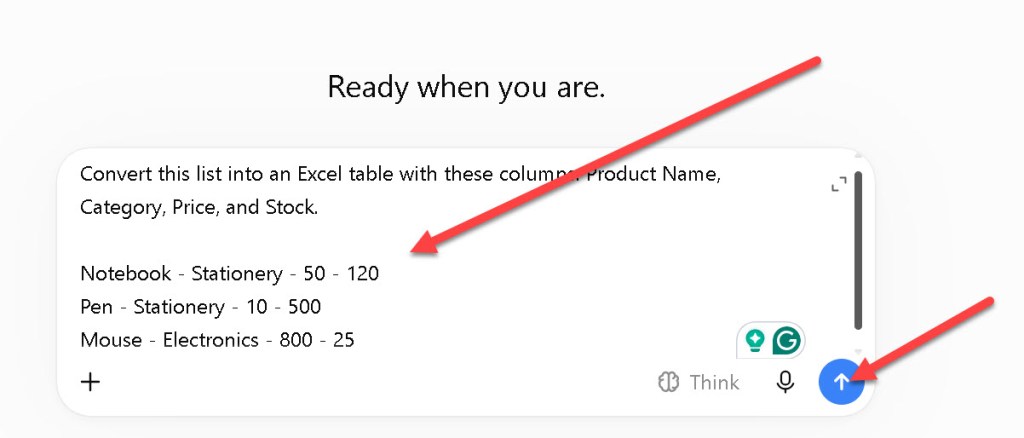
ChatGPT can organise the information into a table.

You can then copy the table and paste it into Excel and add the borders, change formatting of the table.

If available in your ChatGPT version, you can also ask ChatGPT to create an Excel file from the data.
Convert Text to Excel Using Microsoft Copilot:
If you are using Microsoft Copilot in Excel, you can use it to organise your text into an Excel table.
You can give this information to Copilot and ask it to create a table with the columns:
First, click the cell where you want the table to be created.
You can ask:
“Create a table from this data with these columns: Product Name, Category, Price, and Stock.”
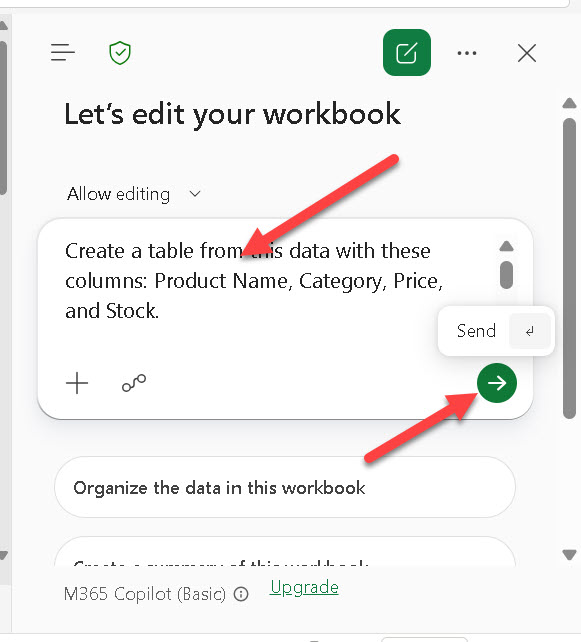
Copilot can create the table directly in Excel.

You can then continue working with the data in Excel. You can sort the products, filter the categories, calculate totals, and create reports.
Quick Tip: When using Copilot in Excel, clearly mention the columns you want and how you want the information organised. This makes it easier for Copilot to create the table you need.
Related article: How to Enable Copilot in Excel (Step-by-Step Guide)
AI Can Also Help Clean the Text:
Sometimes your text may contain extra spaces, different capital letters, or dates written in different formats.
AI can help organise this information too.
For example, you can ask:
“Convert this text into a structured Excel table. Remove extra spaces, use proper capital letters for names, and make all dates use the same format.”
This can save you time when working with messy text.
But remember to check the result before using it.
Related article: How AI Can Clean Messy Excel Data Automatically
Useful AI Prompts for Excel:
Here are some simple prompts you can try:
- “Convert this text into an Excel-ready table.”
- “Create columns for Name, City, Phone Number, and Email.”
- “Keep one customer in each row.”
- “Extract all product names, prices, and quantities from this text.”
- “Convert this list into a table with Date, Description, Amount, and Category.”
- “Organise this feedback into columns for Customer Name, Feedback, Rating, and Date.”
- “Clean this text and convert it into structured Excel data.”
You can change the column names based on the type of information you have.
Example 2: Convert Customer Details Into an Excel Table
Let’s say you have this text:
John Smith from Mumbai bought a laptop on 10 May 2026.
Riya Sharma from Hyderabad bought a keyboard on 12 May 2026.
Aman Kumar from Delhi bought a mouse on 14 May 2026.
You can ask AI:
“Convert this text into an Excel-ready table with these columns: Customer Name, City, Product, and Purchase Date.”
AI can help to organise it like this:
| Product Name | Category | Price | Stock |
| Notebook | Stationery | 50 | 120 |
| Pen | Stationery | 10 | 500 |
| Mouse | Electronics | 800 | 25 |
You can now copy this table and paste it into Excel.
Keep Your Information Safe:
AI can be useful for organising data, but be careful when sharing information.
If your text contains private or important information, avoid pasting the full data into an AI tool unless you know it is appropriate and safe to do so.
Be careful with information such as:
- Customer names
- Phone numbers
- Email addresses
- Bank details
- Passwords
- Personal addresses
- Business reports
Why Is Structured Data Useful in Excel?
Once your text is organised into rows and columns, you can do much more with it in Excel.
You can:
- Sort the data
- Filter the data
- Create charts
- Use formulas
- Create PivotTables
- Find duplicate values
- Create reports
- Save time
For example, if customer names and cities are in separate columns, you can quickly filter customers from a particular city.
Common Problems When Converting Text to Excel:
AI Puts Information in the Wrong Column:
This can happen when the original text is not clear.
Try giving AI more specific instructions and clearly mention the columns you need.
Some Information Is Missing:
Compare the AI result with the original text.
If something is missing, ask AI to check the text again.
Dates Are Not in the Same Format:
You can ask AI to use one date format.
For example:
01-May-2026
Frequently Asked Questions:
Can AI convert text into an Excel table?
Yes.
AI can organise information from text into rows and columns that you can copy into Excel.
Can AI clean messy text before converting it?
Yes.
AI can help remove extra spaces, organise information, and make dates and other details more consistent.
Do I need to know Excel formulas?
No.
You can simply tell AI what information you have and which columns you want.
Can I paste the AI result directly into Excel?
Yes.
After checking the result, you can copy the table and paste it into Excel.
Should I share private data with AI?
Be careful with private, personal, financial, or important business information.
If possible, use sample data or remove sensitive details before sharing the text.
Final Thoughts:
Converting text into an Excel table is not difficult.
Instead of manually typing every name, date, phone number, or product detail into separate cells, you can use AI to organise the information for you.
Just remember three things:
- Give clear instructions.
- Check the result.
- Keep private information safe.
Once your text is organised into rows and columns, you can use Excel more easily for sorting, filtering, calculations, and reports.
Discover more from Excellopedia
Subscribe to get the latest posts sent to your email.