

Do you have an Excel sheet that looks messy and confusing?
Maybe some names are in small letters, some are in capital letters, dates are written in different ways, and a few rows are repeated.
This is very common in Excel.
When you enter data every day, or when many people work on the same file, the sheet can become messy slowly. You may not notice it at first. But later, when you try to create a report, chart, or PivotTable, the problems start showing up.
But wait—you do not have to clean everything manually.
AI can help you find these problems and tell you how to fix them. It can help you remove extra spaces, find duplicate data, fix date formats, and make your Excel sheet look clean and organised.
In this article, let’s understand how AI can help you clean messy Excel data in a simple way.
What Is Messy Data in Excel?
Messy data means your data is not in the same format.
For example, look at this table:
| Customer Name | City | Date |
| ram kumar | Mumbai | 01-05-2026 |
| Ram Kumar | mumbai | May 1, 2026 |
| RAM KUMAR | MUMBAI | 01-05-2026 |
| Ram Kumar | Mumbai | 01-05-26 |
All the names, cities, and dates may mean the same thing. But they look different.
Here, you can see a few problems:
- `ram kumar` and `Ram Kumar` are written differently.
- `Mumbai`, `mumbai`, and `MUMBAI` do not look the same.
- One name has an extra space.
- Dates are written in different formats.
If you use this data in a report, Excel may not give you the correct result. Excel may not group or sort it properly. Your reports, PivotTables, and charts can become confusing.
That is why cleaning your data is important.
How Can AI Help Clean Excel Data?
AI can help you understand what is wrong with your data.
You can ask AI simple questions like:
“My Excel sheet has duplicate names, blank cells, and different date formats. How can I clean it?”
AI can then give you simple steps, formulas, or Excel tools to use.
It can help you:
- Find duplicate rows
- Remove extra spaces
- Fix name formatting
- Make dates look the same
- Find blank cells
- Check numbers stored as text
- Create formulas for cleaning data
You do not need to know every Excel formula. You can explain your problem to AI in simple words and ask for help.
Start by Checking Your Data:
Before you make any changes, take a quick look at your Excel sheet.
Ask yourself:
- Are there duplicate rows?
- Are names written in different ways?
- Are there blank cells?
- Are dates in the same format?
- Are all numbers behaving like numbers?
- Are there extra spaces in text?
If you are not sure, you can ask AI:
“Give me a checklist to clean this Excel data before making a report.”
AI can help you create a clear plan instead of trying to fix everything at once.
Example: Clean Names With AI:
Let’s say you have these names in Excel:
- ram kumar
- Ram Kumar
- RAM KUMAR
- Ram Kumar
They are all the same name, but they do not look clean.
You can ask AI:
“How can I remove extra spaces and fix capital letters in customer names?”

AI may suggest this formula:
=PROPER(TRIM(A2))
This formula does two things:
`TRIM` removes extra spaces
`PROPER` makes the first letter of every word capital

So, `ram kumar` becomes `Ram Kumar`.
Simple, right?
Example: Find Duplicate Data:
Duplicate data can create problems in your Excel file.
For example, if the same invoice number appears twice, your total sales amount may become wrong. If the same customer is listed twice, your customer list may not be accurate.
You can ask AI:
“How can I find duplicate invoice numbers in Excel?”

AI may suggest using Conditional Formatting or a formula like this:
=COUNTIF(A:A,A2)>1
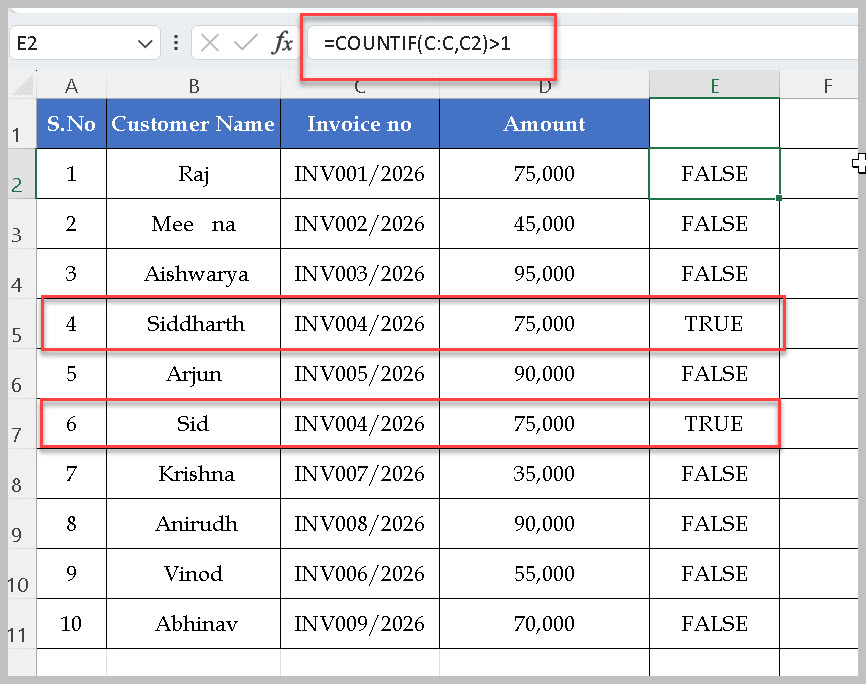
If Excel shows `TRUE`, it means the value in that row appears more than once.
Do not delete duplicates immediately. First, check whether both rows are really the same. Sometimes one row may have more complete information than the other.
Example: Fix Different Date Formats:
Dates can also make your Excel sheet messy.
For example, you may have dates like this:
- 01/05/2026
- 1 May 2026
- 2026-05-01
- May 1, 2026
They may all mean the same date, but they do not look the same.
This can make sorting and filtering difficult.
You can ask AI:
“My dates are in different formats in Excel. How can I make them look the same?”

AI can guide you to convert the dates and use one format for the whole column.
For example, you can use:
`01-May-2026`

When all dates look the same, your sheet becomes much easier to read.
Example: Numbers Stored as Text:
Sometimes a number looks correct, but Excel treats it as text.
For example, a value like `500` may be stored as text. It may look like a number, but Excel may not include it correctly in calculations.
You can ask AI:
“Some numbers in my Excel sheet are stored as text. How can I convert them into numbers?”
AI can show you different ways to fix this, depending on your data. It may suggest using the warning icon, changing the cell format, or using a formula.
This is useful when your SUM formula is not giving the correct answer.
A Simple Way to Use AI for Data Cleaning:
If you are new to AI and Excel, follow this simple process.
Step 1: Make a Copy of Your Excel File:
Before changing anything, save a copy of your file.
This is important because you can go back to the original data if something goes wrong.
Step 2: Find One Problem
Do not try to clean everything at once.
Start with one small problem, such as:
- Extra spaces in names
- Duplicate invoice numbers
- Different date formats
- Blank cells
Step 3: Ask AI a Clear Question:
Tell AI exactly what you are trying to fix.
For example:
“I have customer names with extra spaces and different capital letters. Give me an Excel formula to clean them.”
Step 4: Test the Formula First:
Do not apply a formula to your whole sheet immediately.
Try it on two or three rows first. Check whether the result looks correct.
Step 5: Clean the Rest of the Data:
Once you are happy with the result, use AutoFill to copy the formula down the column.
This is the safest and easiest way to clean a large Excel sheet.
Ask AI to Check Your Data:
Sometimes you may not know what is wrong with your sheet. That is okay.
You can ask AI to give you a simple data-cleaning checklist.
For example:
“Check my Excel data and tell me what I should clean before creating a report.”
AI may tell you to check for:
- Blank cells
- Duplicate rows
- Extra spaces
- Wrong spellings
- Different capital letters
- Dates stored as text
- Numbers stored as text
- Missing data
This gives you a clear idea of where to start.
Simple Prompts You Can Use:
You do not need to write long prompts. Just tell AI what problem you have.
Try these simple prompts:
- “Help me find duplicate rows in my Excel sheet.”
- “Give me a formula to remove extra spaces from names.”
- “How can I make all city names look the same in Excel?”
- “Help me change all dates into one format.”
- “Find blank cells in this data.”
- “Give me a checklist to clean my Excel data before making a PivotTable.”
Important Things to Remember:
AI can help you save time, but always check the result before making changes.
Here are a few things to remember:
- Make a copy of your file first.
- Check duplicate data before deleting it.
- Test formulas on a few rows before using them on the full sheet.
- Do not share private customer or financial data without permission.
- Clean one problem at a time.
AI can guide you, but you should always check your final data.
Important: Keep Your Excel Data Safe:
AI can help you clean your Excel data, but you should be careful before sharing your worksheet.
If your file contains valuable or private information, do not upload the full sheet to an AI tool.
For example, be careful with data such as:
- Customer names
- Phone numbers
- Email addresses
- Bank details
- Salary details
- Sales data
- Business reports
- Personal information
Before sharing anything, remove the information that is not needed.
For example, if you only want help with date formats, share a small sample with just the date column. You do not need to share the full customer list or sales report.
This way, AI can still help you understand the problem without seeing important information.
Always share only the data that is needed for your question. Keep the rest of your worksheet private.
Can AI Clean My Excel Sheet and Give Me a Revised File?
Yes, AI can help clean your Excel data and give you a revised version of the sheet.
For example, you can upload your Excel file and ask AI to:
- Remove duplicate rows
- Remove extra spaces
- Fix names and capital letters
- Make dates look the same
- Find blank cells
- Convert numbers stored as text
- Organise the data into a clean format
You can use a prompt like this:
“Clean this Excel sheet. Remove duplicate rows, fix extra spaces in names, make all dates use the same format, and give me a revised copy of the data.”
AI can check the sheet, make the changes, and provide a cleaned version for you to download.
But remember, always check the revised sheet before using it. AI can make mistakes, especially when the data has similar names, missing information, or important business details.
Why Is Clean Data Important?:
Clean data makes your Excel work much easier.
When your data is clean, you can:
- Create better reports
- Make accurate PivotTables
- Build clean charts
- Sort and filter data properly
- Avoid wrong totals
- Save time while working
A clean Excel sheet also looks more professional.
Frequently Asked Questions (FAQ’S):
Can AI clean Excel data automatically?
AI can help you find problems and suggest formulas or steps to fix them. You should always check the result before making final changes.
Can AI find duplicate data in Excel?
Yes. AI can show you how to find duplicate data using formulas, Conditional Formatting, or Excel’s Remove Duplicates tool.
Can AI remove extra spaces in Excel?
Yes. AI can suggest formulas like `TRIM` to remove extra spaces from text.
Can AI fix date formats in Excel?
Yes. AI can guide you to convert dates into a proper Excel date format and make all dates look the same.
Should I check AI’s results?
Yes. Always check the results, especially when you are working with important business, customer, or financial data.
Messy Excel data is normal. Almost every Excel user faces it at some point.
But you do not have to spend hours fixing everything manually.
AI can help you understand the problem, find the right Excel formula, and clean your data step by step. Start with one small task, such as removing extra spaces or finding duplicate rows.
Once you get comfortable, cleaning Excel data will become much easier.
Discover more from Excellopedia
Subscribe to get the latest posts sent to your email.