

Have you ever had a list of numbers in Excel and wanted to add them quickly?
Maybe you have sales amounts, marks, expenses, or monthly totals. You could type a SUM formula manually, but there is an easier way.
Excel has a feature called AutoSum.
With AutoSum, you can add numbers in just a few clicks. Excel automatically creates the SUM formula for you and tries to select the numbers you want to add.
It is one of the simplest and most useful Excel features, especially for beginners.
What Is AutoSum in Excel?
AutoSum is an Excel feature that quickly adds numbers in a row or column.
For example, if you have sales amounts in cells B2 to B10, AutoSum can create this formula for you:
=SUM(B2:B10)
You do not need to type the formula yourself.
Excel looks at the nearby numbers, selects the range, and gives you the total.
Where Is AutoSum in Excel?
You can find the AutoSum button in two places:
- On the Home tab
- On the Formulas tab
The AutoSum button uses the Sigma symbol:
Σ
When you click it, Excel usually creates a SUM formula automatically.
How to Use AutoSum in Excel?
Let’s understand this with a simple example.
Suppose you have a monthly sales report like this:
| Month | Product A | Product B | Product C |
| January | 10,000 | 8,000 | 7,000 |
| February | 12,000 | 9,000 | 8,000 |
| March | 8,000 | 11,000 | 6,000 |
| April | 15,000 | 10,000 | 9,000 |
| May | 13,000 | 12,000 | 10,000 |
| June | 11000 | 17,000 | 12,000 |
Now you want to find the total sales.
- Click on the empty cell below the Product A sales numbers.
- Click the AutoSum button.
- Excel will select the nearby numbers.
- Check the selected range.
- Press Enter.
Excel will calculate the total.
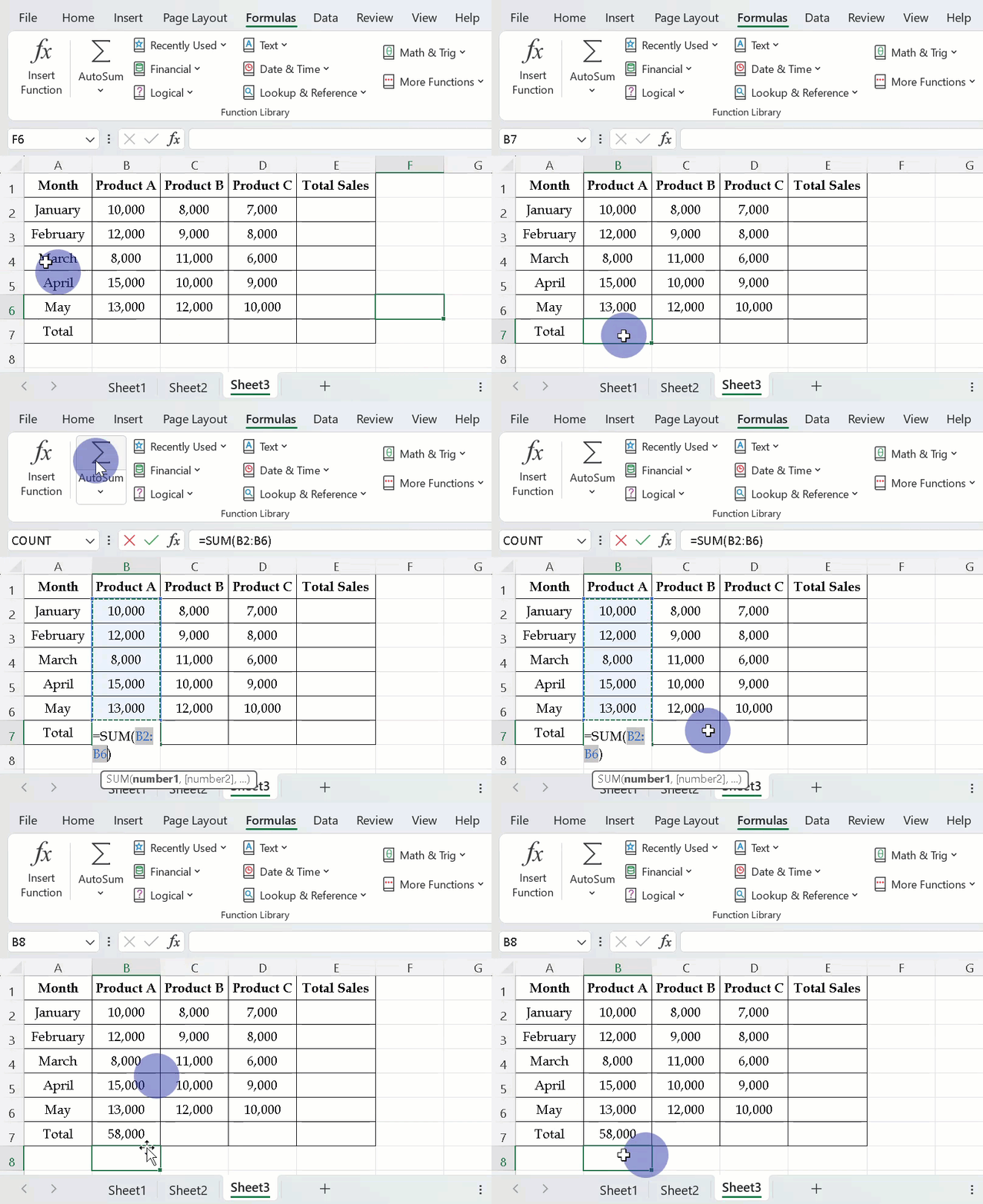
In this example, the formula will be:
=SUM(B2:B6)
The answer will be:
58,000
That’s it. You did not have to type the SUM formula manually.
AutoSum Shortcut in Excel:
If you use AutoSum often, there is also a keyboard shortcut.
On Windows, press:
Alt + =
Excel will automatically insert the AutoSum formula.
Check the selected range and press Enter.
This can save you a few clicks when working with large amounts of data.
What If Excel Selects the Wrong Cells?
What If Excel Selects the Wrong Cells?
AutoSum is helpful, but Excel does not always select the exact range you want.
This can happen when you have subtotals, multiple groups of numbers, or other numeric values close to your data.
For example, suppose you have this sales data:
| Month | Product A |
| January | 10,000 |
| February | 12,000 |
| March | 8,000 |
| Quarter 1 Total | 30,000 |
| April | 15,000 |
| May | 13,000 |
| June | 11000 |
| Total | 39,000 |
Here, the Quarter 1 Total of 30,000 was manually entered as a number, not calculated using a formula.
Now you want to calculate the total sales for April to June.
Click the empty Total cell and click AutoSum.
Because the Quarter 1 Total is also a number in the same column, Excel may include it when selecting the range.
For example, Excel may suggest:
=SUM(B2:B8)
But you only want to add the sales for April, May, and June.
So the correct formula is:
=SUM(B6:B8)
That is why you should always check the selected range before pressing Enter.
After you click AutoSum, Excel shows the selected cells with a moving border. If the selected cells are wrong, simply click and drag over the correct cells.
Then press Enter.
It only takes a few seconds to check the range, but it can help you avoid getting the wrong total.

Note: If the Quarter 1 Total is calculated using a formula, such as =SUM(B2:B4), Excel can recognize it as a subtotal and may not include it when suggesting the range.
AutoSum for Rows:
AutoSum does not work only for columns. You can also use it for rows.
For example, you can find the total sales for January by adding Product A, Product B, and Product C.
| Month | Product A | Product B | Product C | Total Sales |
| January | 10,000 | 8,000 | 7,000 |
Click on the empty Total Sales cell. Then click AutoSum.
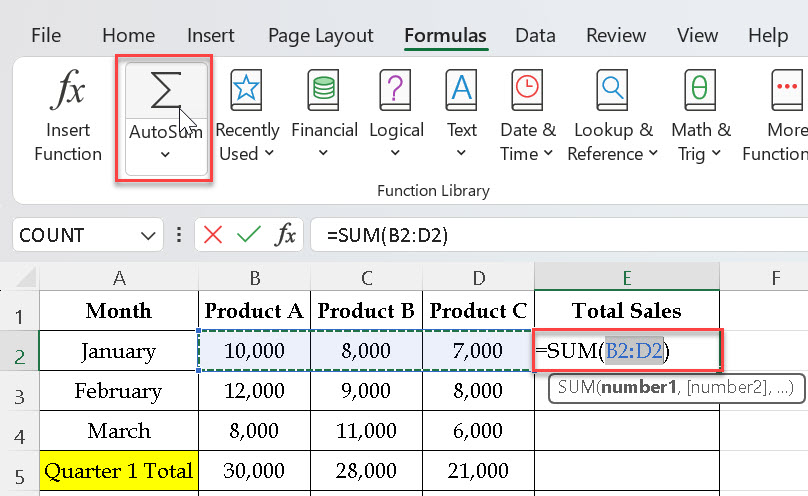
Excel may select the sales values for Product A, Product B, and Product C.
The formula will look like this:
=SUM(B2:D2)
After pressing Enter, Excel will show the total sales.
The total for January will be 25,000.
Use AutoSum for Many Rows:
What if you have hundreds of rows?
You do not need to use AutoSum separately for every row.
For example, suppose you have a list of monthly sales and want to calculate the total sales for each month.
First, use AutoSum for the first month.
Then use the fill handle to copy the formula down.
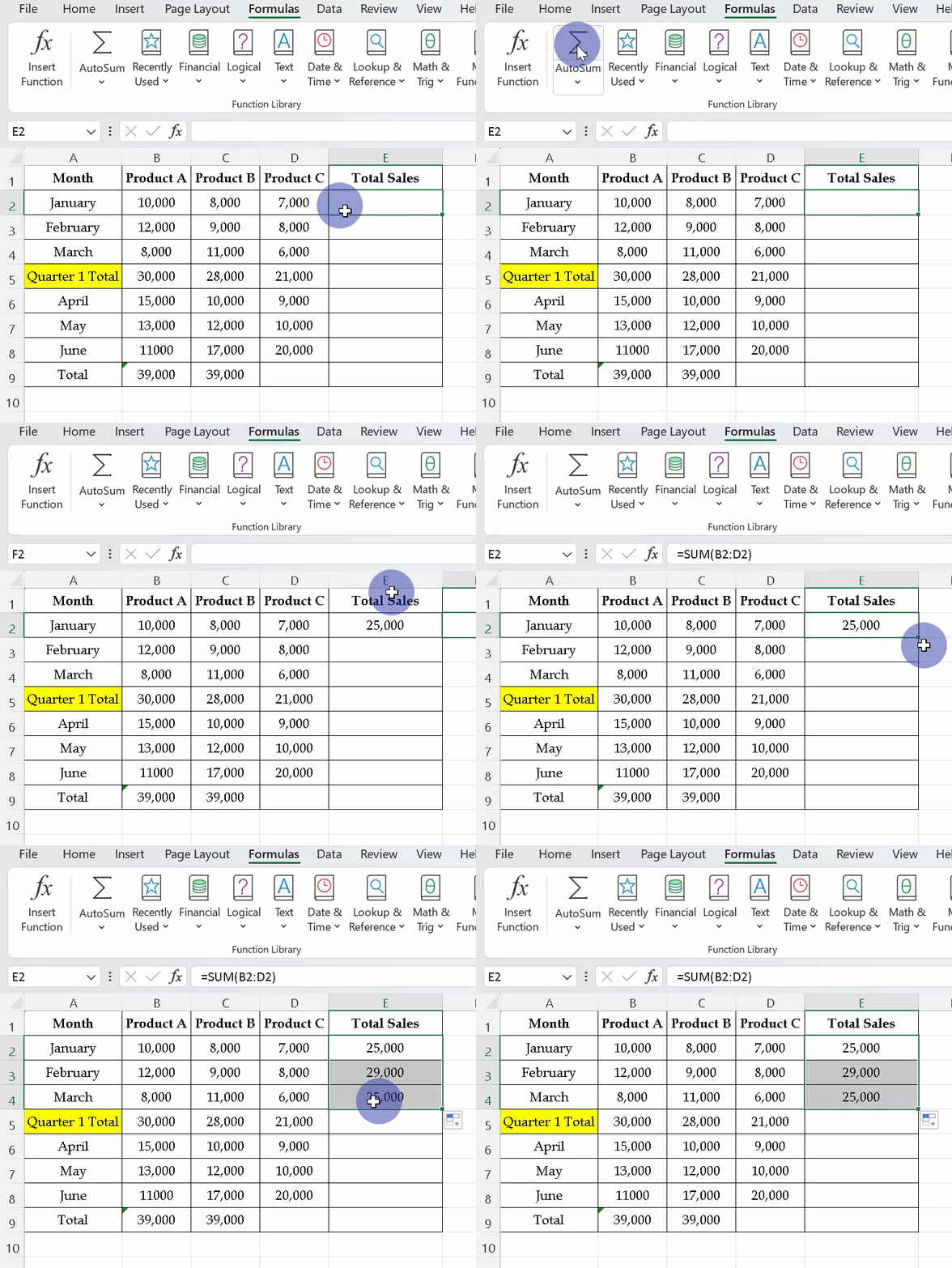
The fill handle is the small square at the bottom-right corner of the selected cell.
Click and drag the fill handle down, and Excel will copy the formula to the other rows while automatically adjusting the row numbers.
This can save a lot of time when working with larger lists.
AutoSum Can Do More Than Add Numbers:
The name AutoSum makes it sound like it is only for adding numbers.
But the AutoSum menu also gives you other useful calculation options.

Click the small arrow next to the AutoSum button, and you will see options such as:
- Average
- Count Numbers
- Max
- Min
Let’s look at what each one does.
Average:
Use Average when you want to find the average of numbers.
For example, you can find the average monthly sales for Product A.
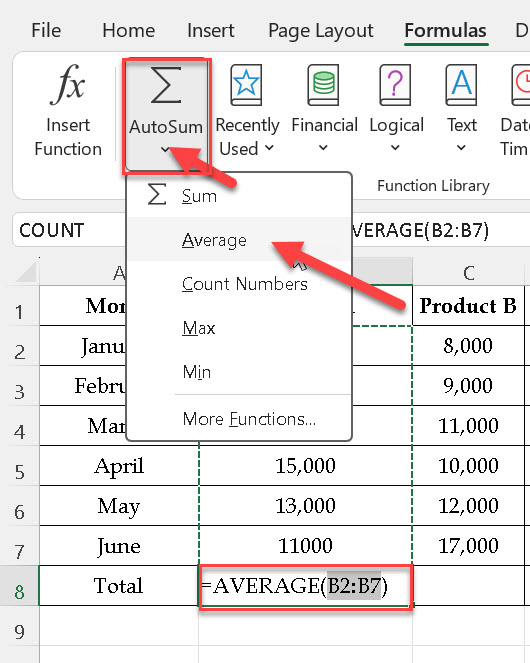
=AVERAGE(B2:B7)
The result will be:
11,500
Count Numbers:
Use Count Numbers when you want to know how many cells contain numbers.
For example, if you have sales entered for all five months, Count Numbers can tell you that there are 6 numbers in the Product A column.

=COUNT(B2:B7)
The result will be: 5
Max:
Use Max when you want to find the highest number.
For example, if you have monthly sales data for Product A, Max can help you find the highest sales amount.
=MAX(B2:B7)
The result will be:
15,000

Min:
Use Min when you want to find the lowest number.
For example, if you have monthly sales data for Product A, Min can help you find the lowest sales amount.

=MIN(B2:B7)
The result will be:
8,000
AutoSum vs. Auto Calculate:
The AutoSum and Auto Calculate may sound similar, but they are different.
AutoSum adds a formula inside your Excel sheet.
For example, it creates:
=SUM(B2:B10)
The result stays in the cell and updates when your data changes.
Auto Calculate only shows a quick answer at the bottom of the Excel screen when you select cells. It does not add a formula to your worksheet.

So, use:
- AutoSum when you want the result saved in your worksheet.
- Auto Calculate when you just want to quickly check a total or other calculation.
Common AutoSum Problems:
Sometimes AutoSum may not give the result you expect. Here are a few common problems.
AutoSum Is Not Adding All Numbers:
If there is a blank cell in the middle of your data, Excel may not select the entire range automatically.
For example, if your numbers are:
| B2 |
| B3 |
| B4 |
| BLANK |
| B6 |
| B7 |
Now, if you add AutoSum in B8, Excel selects only B6:B7, because there is a blank cell at B5.

Excel may stop selecting numbers when it finds the blank cell.
To fix this, simply select the complete range yourself before pressing Enter.
AutoSum Is Showing Zero:
If AutoSum shows 0 even though you can see numbers in the cells, your numbers may be stored as text.
A number stored as text can look like a normal number, but Excel may not treat it as a number for calculations.
Check the cells and convert the values to numbers if necessary.
AutoSum Is Adding the Wrong Range:
Sometimes AutoSum does not select the correct cells.
This can happen when there is a blank cell in your data, a heading near the numbers, or another number above or beside the list.
For example, you may want to add sales from B2 to B7. But Excel may select B6 to B7 and stop at B5 because there is a blank cell at B5.
That is why you should always check the formula before pressing Enter.
After you click AutoSum, Excel shows the selected cells with a moving border. If the selected cells are wrong, do not press Enter yet.
Simply click and drag over the correct cells.

For example, if Excel shows:
=SUM(B6:B7)
but you want to add only the sales values from B2 to B7, change it to:
=SUM(B2:B7)
Then press Enter.
It only takes a few seconds to check, and it helps you avoid getting the wrong total.
Why Should You Use AutoSum?
AutoSum is useful because it makes basic calculations quick and easy.
You can use it to:
- Add sales amounts
- Calculate total marks
- Add monthly expenses
- Calculate total income
- Find the highest value
- Find the lowest value
- Count numbers in a list
- Calculate averages
The best part is that you do not have to type the formula manually every time.
Frequently Asked Questions:
What is AutoSum in Excel?
AutoSum is an Excel feature that quickly adds numbers and automatically creates a SUM formula for you.
Where can I find AutoSum in Excel?
You can find AutoSum on the Home tab and the Formulas tab. Look for the Sigma symbol: `Σ`.
What is the shortcut for AutoSum?
On Windows, press `Alt + =` to use AutoSum.
Can AutoSum add numbers in a row?
Yes. AutoSum can add numbers arranged in both rows and columns.
Can AutoSum find an average?
Yes. Click the arrow next to AutoSum and choose Average.
Why is AutoSum not working?
Check whether your numbers are stored as text, whether there are blank cells in the data, or whether Excel selected the wrong range.
AutoSum is one of the easiest Excel features to learn, but it can save you a lot of time.
The next time you need to add a list of numbers, you do not have to type the SUM formula manually.
Just click AutoSum, check the selected cells, and press Enter.
It only takes a few seconds, but it can make your Excel work much faster.
Discover more from Excellopedia
Subscribe to get the latest posts sent to your email.