

Are you typing the same things again and again in Excel? Or writing a sequence manually, like 1, 2, 3, 4 or January, February, March?
Wait for a second—you do not have to do all of that yourself.
Excel has a simple feature called AutoFill that can do this work for you. It can continue number sequences, fill dates and months, copy repeated data, and even copy formulas into other rows.
You just need to give Excel a small starting example. After that, AutoFill can complete the rest in a few clicks.
What Is AutoFill in Excel?
AutoFill is an Excel feature that automatically fills cells based on the data or pattern you give it.
For example, if you type:
- January
- February
and then use AutoFill, Excel can continue the list with March, April, May, and so on.
It can also work with numbers, dates, days, formulas, and repeated text.
In simple words, AutoFill helps you save time by doing repetitive work for you.
Where Is the AutoFill Option?
You will not find AutoFill as a big button on the screen. It works through the fill handle.
When you click on a cell, you will see a tiny square at the bottom-right corner of the selected cell. That little square is the fill handle.
When you move your mouse over it, the cursor changes into a small black plus sign. Now you can click and drag it down, up, left, or right to fill nearby cells.

At first, it may look very small, but it is one of the most useful tools in Excel.
How to Use AutoFill in Excel?
Let’s keep it simple.
1. Type something in a cell.
2. Click on that cell.
3. Move your cursor to the small square at the bottom-right corner.
4. Click and drag it across the cells you want to fill.
5. Release the mouse.
Excel will either copy your value or continue the pattern.
What happens depends on the data you started with.
Example 1: AutoFill Numbers in Excel:
Say you are making a list of students and need serial numbers.
Type `1` in cell A2 and `2` in cell A3. Then select both cells and drag the fill handle down.
Excel will continue the list:
1, 2, 3, 4, 5, 6…
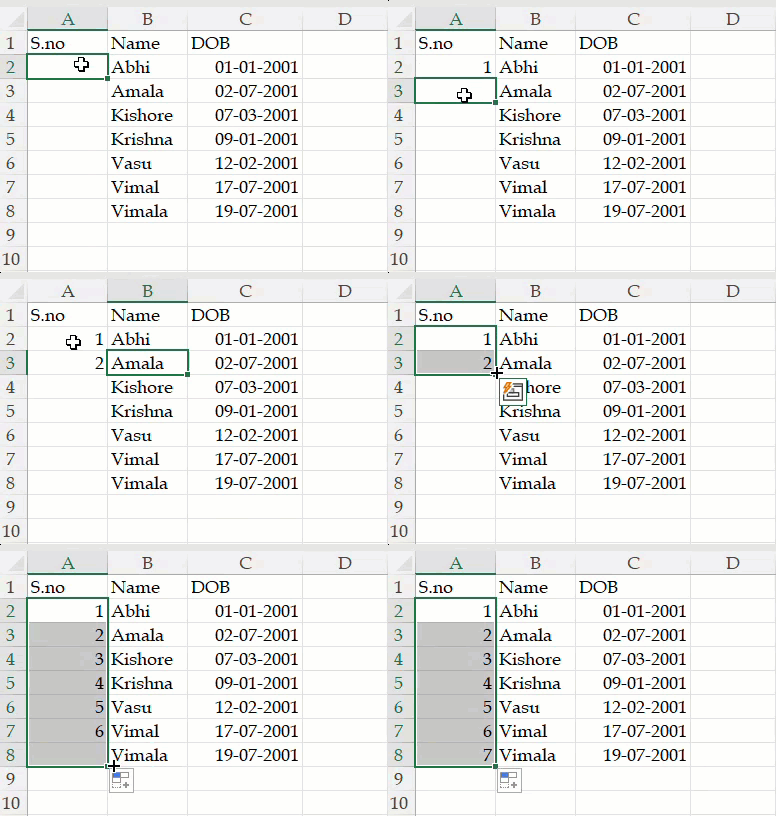
This is much faster than typing every number yourself.
One small thing to remember: if you type only `1` and drag it, Excel may copy 1 again and again. To tell Excel that you want a series, give it two starting numbers, such as 1 and 2.
Example 2: AutoFill Months and Days:
AutoFill is very helpful when you are making planners, attendance sheets, or monthly reports.
Type `January` in a cell and drag the fill handle down. Excel can continue with:
February, March, April, May…

The same works with days:
Monday, Tuesday, Wednesday…
You can also use short forms like Jan, Feb, Mon, and Tue.
It feels like a small shortcut, but when you are creating a full year planner, it makes a real difference.
Example 3: AutoFill Dates in Excel:
Let’s say you are tracking your daily expenses.
Type a date, such as `01/01/2026`, into a cell. Then drag the fill handle down.
Excel will continue the dates for you:
- 02/01/2026
- 03/01/2026
- 04/01/2026

You do not need to enter each date manually. This is especially useful for daily reports, attendance records, budgets, and project trackers.
Example 4: AutoFill Formulas in Excel:
AutoFill is especially helpful when you are working with formulas.
Let’s say you have quantity in column C and price in column D. In cell E2, you write:
`=C2*D2`
This formula calculates the total amount.
Instead of typing the same formula in every row, click on E2 and drag the fill handle down. Excel will automatically copy the formula to the other rows.

It will also adjust the cell references for you:
- In E2: `=C2*D2`
- In E3: `=C3*D3`
- In E4: `=C4*D4`
This is one of the biggest reasons people use AutoFill in Excel.
Double-Click to AutoFill Faster:
Here is a quick trick.
If you have data in the columns next to your formula, you do not always need to drag the fill handle.
Just double-click the fill handle.
Excel will automatically copy the formula down to match the length of the nearby data.

For example, if you have 50 rows of product names and prices, double-clicking the fill handle can copy your total formula down all 50 rows in seconds.
Very useful. Very satisfying.
AutoFill Options in Excel:
After using AutoFill, you may see a small AutoFill Options button near the filled cells.
Click it, and you can choose what you want Excel to do.
Common options include:
- Copy Cells – Copies the same value or formula.
- Fill Series – Continues a number, date, or pattern.
- Fill Formatting Only – Copies only the formatting.
- Fill Without Formatting – Copies the values or formulas without changing the existing style.
These options are useful when Excel does not give you the exact result you expected.
For example, If Excel may copy something when you wanted it to continue a pattern. Don’t worry—this happens.

So if Excel copies `1, 1, 1, 1` but you wanted `1, 2, 3, 4`, choose Fill Series.
AutoFill vs. Copy and Paste:
AutoFill and copy-paste may look similar, but they are not the same.
Copy-paste simply repeats the same content.
AutoFill can repeat content, but it can also continue patterns and update formulas.
For example:
- Copy-paste can copy `January` again and again.
- AutoFill can continue with February, March, and April.
That is why AutoFill is much more useful when working with sequences, dates, and formulas.
AutoFill vs. Flash Fill:
AutoFill and Flash Fill are also different.
AutoFill works by copying data or continuing a pattern through the fill handle.
Flash Fill helps when you want Excel to recognise a pattern in text. For example, if you have full names and want to separate first names, Flash Fill can help after you give it one example.
So, use:
- AutoFill for numbers, dates, formulas, and repeated patterns.
- Flash Fill for text patterns, such as splitting names or creating email IDs.
Common AutoFill Problems:
Sometimes AutoFill may not work the way you expect. Don’t worry—these problems are common and easy to fix.
Excel is copying instead of continuing a series:
If you type only one number, such as `1`, and drag it down, Excel may copy 1 into every cell.
If you want a number series, type two numbers first. For example, type `1` and `2` in two cells. Select both cells, then drag the fill handle. Excel will continue with 3, 4, 5, and more.
The fill handle is not visible:
First, click on the cell you want to use. The fill handle is the small square at the bottom-right corner of the selected cell.
If you have selected more than one cell, you will see it at the bottom-right corner of the whole selected area.
The formula is showing the same result in every row:
This can happen when part of your formula is locked.
For example, `$B$2` stays the same when you copy a formula down. The dollar signs tell Excel not to change that cell.
If you want Excel to change the row number for each row, use `B2` instead of `$B$2`.
For example:
- =B2*C2 changes as you move down
- =$B$2*C2 keeps B2 fixed in every row
Why Should You Use AutoFill?
AutoFill is useful because it makes Excel work feel faster and easier.
It can help you:
- Copy the same text or number
- Continue a number sequence
- Fill months, days, and dates
- Copy formulas without retyping them
- Continue number patterns
- Save time on repetitive tasks
- Reduce typing mistakes
Even if you are a beginner, AutoFill is one Excel feature worth learning early.
Frequently Asked Questions (FAQ’s):
What is AutoFill in Excel?
AutoFill is a feature that helps you fill cells quickly. It can copy the same data, continue numbers, fill dates, and copy formulas.
How do I use AutoFill in Excel?
Click on a cell. Then move your mouse to the small square at the bottom-right corner of the cell. Click it and drag it over the cells you want to fill.
Can AutoFill copy formulas?
Yes. AutoFill can copy a formula into other rows or columns. Excel will also change the formula automatically for each row or column.
Why is Excel copying my number instead of continuing the series?
You may have entered only one number. Try entering two numbers, like 1 and 2. Select both cells, then drag the small square down. Excel will continue with 3, 4, 5, and more.
Excel AutoFill is a small tool, but it can save you a lot of time.
You can use it for dates, numbers, months, and formulas. Instead of typing everything manually, simply use the small square at the corner of a cell and let Excel fill the rest for you.
Try it with a small list first. Once you understand it, using AutoFill will feel very easy.
Discover more from Excellopedia
Subscribe to get the latest posts sent to your email.