

Have you ever needed to calculate the area or circumference of a circle in Excel?
To do this, you need a mathematical value called Pi (π). Its approximate value is 3.14159.
Instead of typing this value manually every time, you can use Excel’s built-in PI function.
In this article, let’s learn how to use the PI function in Excel with simple examples. We’ll also understand what pi means, explore practical calculations, and learn about common mistakes.
What Is the PI Function in Excel?
The PI function returns the value of Pi (π), a mathematical constant used in calculations involving circles.
The value of Pi is approximately 3.14159265358979.
For example, enter the following formula in an empty cell:
=PI()
Press Enter, and Excel returns approximately 3.14159265358979.
You don’t need to enter any numbers inside the parentheses because the PI function does not require an argument.
You don’t need to type the value of pi manually. The PI function provides it whenever you need it for a calculation.
The PI function is commonly used in formulas involving circles, cylinders, spheres, and other calculations that use pi.
PI Function Syntax in Excel:
The syntax of the PI function is:
=PI()

The PI function has no arguments. You simply enter the function name followed by empty parentheses.
Let’s look at some practical examples.
How to Use the PI Function in Excel:
Let’s look at some simple examples to understand how the PI function works.
Example 1: Get the Value of Pi
Suppose you want to display the value of pi in an Excel worksheet.
Follow these steps:
1. Click an empty cell.
2. Enter the formula:
=PI()
3. Press Enter.
Excel returns approximately 3.14159265358979.
If you want to display fewer decimal places, you can change the cell’s number format.
For example, if you format the cell to show two decimal places, Excel displays 3.14. The underlying value remains unchanged.
Example 2: Calculate the Circumference of a Circle
The circumference is the distance around a circle.
To calculate it, you need to know the circle’s radius or diameter.
You can calculate it using this formula:
Circumference = 2 × π × Radius
Suppose the radius of a circle is 5 cm.
You can calculate its circumference in Excel using:
=2*PI()*5
Excel returns approximately 31.4159.
Therefore, the circumference is approximately 31.42 cm.
Let’s calculate the circumference using a cell reference.
| Radius in cm | Circumference in cm |
| 5 | =2*PI()*A2 |
| 7 | =2*PI()*A3 |
| 10 | =2*PI()*A4 |
If the radius is in cell A2, enter this formula in B2:
=2*PI()*A2
Press Enter and drag the fill handle down to calculate the circumference for the other radii.

Excel automatically adjusts the cell reference for each row.
Example 3: Calculate the Area of a Circle
The area tells you how much space is inside a circle.
The formula for the area of a circle is:
Area = π × Radius²
Suppose a circle has a radius of 5 cm.
Enter the following formula in Excel:
=PI()*5^2
Excel returns approximately 78.5398.
Therefore, the area is approximately 78.54 square centimetres.
You can also use a cell reference.
| Radius in cm | Area in square cm |
| 5 | =PI()*A2^2 |
| 7 | =PI()*A3^2 |
| 10 | =PI()*A4^2 |
Enter the formula in cell B2 and drag it down to calculate the area for the remaining circles.

Remember that the radius must be squared, not simply multiplied by pi.
Example 4: Calculate the Circumference Using the Diameter
If you know the diameter instead of the radius, you can calculate the circumference directly.
The formula is:
Circumference = π × Diameter
Suppose the diameter of a circle is 10 cm.
Enter:
=PI()*10
Result: Approximately 31.42 cm.
You can also use a cell reference.
Suppose cell A2 contains the diameter. Enter this formula in B2:
=PI()*A2
Excel calculates the circumference using the diameter entered in cell A2.
This method is useful when your measurements provide the diameter rather than the radius.
Real-Life Uses of the PI Function in Excel:
The PI function is useful in calculations involving circular and curved shapes.
Here are a few examples.
1. Calculating Circular Areas
You can use PI to calculate the area of circular objects such as plates, round tables, garden beds, or circular floors.
For example, if a circular garden has a radius of 3 metres, use:
=PI()*3^2
Result: Approximately 28.27 square metres.
2. Calculating Wheel Circumference
The circumference of a wheel helps estimate the distance it travels in one complete rotation, assuming the wheel rolls without slipping.
If the wheel has a diameter of 60 cm, use:
=PI()*60
Result: Approximately 188.50 cm per rotation.
3. Calculating the Volume of a Cylinder
The PI function can also help calculate the volume of a cylinder, such as a cylindrical water tank.
The formula is:
Volume = π × Radius² × Height
Suppose a cylinder has a radius of 2 metres and a height of 5 metres.
Enter:
=PI()*2^2*5
Result: Approximately 62.83 cubic metres.
These examples show how the PI function can help with measurements, design calculations, and everyday mathematical problems.
What Is the Difference Between PI and ROUND in Excel?
The PI and ROUND functions serve different purposes.
| Function | Purpose | Example | Result |
| PI | Returns the mathematical constant pi | =PI() | 3.14159265358979 |
| ROUND | Rounds a number to a specified number of digits | =ROUND(PI(),2) | 3.14 |
For example, =PI() returns pi to Excel’s available precision.
However, =ROUND(PI(),2) rounds the result to two decimal places.
Use PI when you need the value of pi in a calculation. Use ROUND when you want to control the number of decimal places in a result.
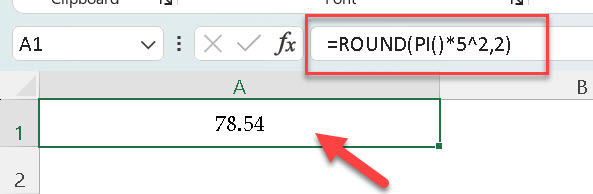
For example, to calculate the area of a circle with a radius of 5 and round the result to two decimal places, use:
=ROUND(PI()*5^2,2)
Result: 78.54
Important Things to Remember When Using PI
Here are a few points to keep in mind:
- Empty parentheses: The PI function does not require an argument. Use =PI(), not =PI(5).
- Decimal places: Excel returns pi to its available precision. The displayed value may change depending on the cell’s number format.
- Units: The PI function does not assign units to a calculation. Use the correct units for your radius, diameter, and final result. Circumference is measured in linear units, such as centimetres. Area is measured in square units, such as square centimetres.
- Radius versus diameter: The area formula uses the radius squared. The circumference formula can use either the radius or the diameter.
- Rounding: Avoid rounding pi too early when you need a more precise calculation. Use the PI function directly and round the final result if needed.
Understanding these points will help you use the PI function correctly.
Frequently Asked Questions:
1. What is the PI function in Excel?
The PI function returns the mathematical constant Pi (π), approximately 3.14159265358979.
2. What is the formula for PI in Excel?
The formula is:
=PI()
The function does not require any arguments.
3. How many decimal places does the PI function return?
The PI function returns Pi to approximately 15 digits of precision. The number of decimal places you see may depend on the cell’s number format.
4. Can I use the PI function to calculate the area of a circle?
Yes. Use the formula:
=PI()*radius^2
For example, if the radius is 5, use =PI()*5^2. The result is approximately 78.54 square units.
5. Can I use the PI function to calculate the circumference of a circle?
If you know the radius, use:
=2*PI()*radius
If you know the diameter, use:
=PI()*diameter
For a circle with a radius of 5, the circumference is approximately 31.42 units.
6. Does the PI function require an argument?
No. The PI function does not require any arguments. Simply enter =PI() in a cell.
7. Can I round the result of the PI function?
Yes. You can use the ROUND function to round the result.
For example:
=ROUND(PI(),2)
This returns 3.14.
Alternatively, you can change the cell’s number format to display two decimal places.
Final Thoughts:
The PI function in Excel makes it easy to use the mathematical constant pi without typing its value manually.
You can use it to calculate the circumference and area of circles, the volume of cylinders, and other measurements involving pi.
The most important thing to remember is that the PI function does not require any arguments.
Simply enter:
=PI()
Excel returns the value of pi, which you can use directly in your formulas.
Once you understand how pi works, the PI function becomes a simple and useful tool for mathematical calculations in Excel.
You can also explore our Advanced Functions in Excel Complete Guide to learn more about useful Excel functions.
Discover more from Excellopedia
Subscribe to get the latest posts sent to your email.