

Have you ever hidden a column in Excel and needed to display it again?
You can use the Ctrl + Shift + 0 keyboard shortcut to unhide columns in Excel.
Let’s see how it works.
Keyboard Shortcut to Unhide Columns in Excel:
The keyboard shortcut to unhide columns in Excel is:
Ctrl + Shift + 0
How to Unhide Columns Using Ctrl + Shift + 0?
Suppose Column C is hidden in your worksheet.
Follow these steps:
1. Select the columns on both sides of the hidden column. For example, select Columns B to D.
2. Press Ctrl + Shift + 0 on your keyboard.
Excel unhides the hidden column within the selected range.
For example, if Column C is hidden, selecting Columns B to D and using the shortcut makes Column C visible again.
Practical Example:
Suppose your worksheet contains these columns:
| Employee | Department | Region | Sales |
| Ravi | Sales | East | 25000 |
| Priya | Marketing | West | 30000 |
| Kiran | Finance | South | 20000 |
If Column C, which contains the Region data, is hidden:
1. Select Columns B to D by dragging across their column letters.
2. Press Ctrl + Shift + 0.
Excel displays the hidden Region column again.
The data is not restored from a backup. It was still in the worksheet, but hidden from view.
What If Ctrl + Shift + 0 Does Not Work?
On some Windows computers, Ctrl + Shift + 0 may not work because of keyboard or regional settings.
Windows may use Ctrl + Shift to switch keyboard layouts. This can interfere with Excel’s shortcut.
How to Fix Ctrl + Shift + 0 Not Working?
Try changing the Windows keyboard settings.
1. Open Windows Settings.
2. Select Time & language.
3. Open Typing or Advanced keyboard settings, depending on your Windows version.
4. Look for Input language hot keys or Language bar options.

5. Open Advanced Key Settings and click Change Key Sequence.

6. Under Switch Keyboard Layout, select Not Assigned, if available.

7. Click OK and test the shortcut in Excel again.
The exact menu names may differ between Windows 10 and Windows 11.
Alternative methods to Unhide the columns:
If the shortcut still does not work, you can unhide columns without using the keyboard shortcut.
Method 1: Use the right-click menu:
1. Select the columns on both sides of the hidden column.
2. Right-click the selected column letters.
3. Select Unhide.

Excel displays the hidden column.
Method 2: Use the ribbon
1. Go to the Home tab.
2. Select Format in the Cells group.
3. Choose Hide & Unhide.
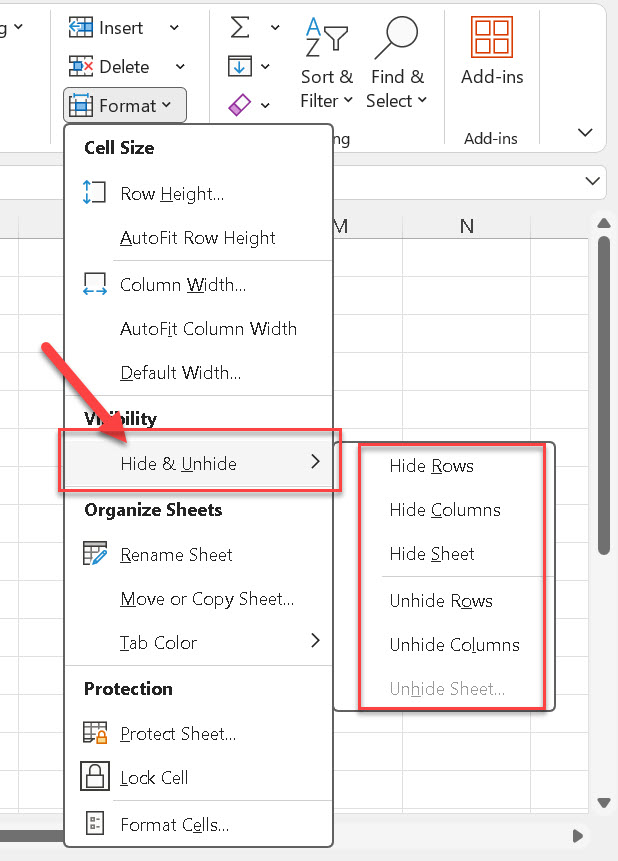
4. Select Unhide Columns.
You can also read our guide on Hide and Unhide in Excel.
Important Things to Remember:
- Ctrl + Shift + 0 is used to unhide columns in Excel for Windows.
- Select the columns around the hidden column before using the shortcut.
- If the shortcut does not work, check your Windows keyboard settings or use the right-click method.
- Unhiding a column displays its existing data. It does not change the data itself.
Excel Shortcuts to Hide and Unhide Rows and Columns:
Excel has four useful keyboard shortcuts to hide and unhide rows and columns.
| Action | Keyboard Shortcut | Learn More |
| Hide columns | Ctrl + 0 | How to Hide Columns in Excel |
| Unhide columns | Ctrl + Shift + 0 | How to Unhide Columns in Excel |
| Hide rows | Ctrl + 9 | How to Hide Rows in Excel |
| Unhide rows | Ctrl + Shift + 9 | How to Unhide Rows in Excel |
Tip: Select the relevant row or column before using a hide shortcut. To unhide rows or columns, select the surrounding rows or columns that include the hidden ones, then use the appropriate shortcut.
Frequently Asked Questions:
1. What is the shortcut to unhide columns in Excel?
The shortcut is Ctrl + Shift + 0 in Excel for Windows.
2. Why is Ctrl + Shift + 0 not working in Excel?
Your Windows keyboard or regional settings may interfere with the shortcut. Try checking your keyboard layout settings. You can also use Home > Format > Hide & Unhide > Unhide Columns.
3. Can I unhide multiple columns at once?
Yes. Select a range that includes the hidden columns, then use the shortcut or choose Unhide from the right-click menu.
Final Thoughts:
The Ctrl + Shift + 0 shortcut can help you display hidden columns without opening the ribbon.
If the shortcut does not work on your computer, you can still unhide columns using the right-click menu or the Format option.
For more details, read our guide on Hide and Unhide in Excel
For more useful shortcuts, visit our Excel Keyboard Shortcuts page.
Discover more from Excellopedia
Subscribe to get the latest posts sent to your email.